Fixing WordPress.com’s SSL validation when DNS is not hosted with WP

When I originally started using WordPress.com for hosting this blog many years ago, SSL was a secondary thought for most people (and for some developers I know, it still is today). That said, at some point WordPress.com configured redirection for my blog from http to https, but never notified me. I recently discovered that I was getting certificate mismatch errors when accessing my blog (normally I sign in via WordPress.com, so I wasn’t seeing the certificate errors that my visitors were). So I set out to fix the SSL error, and here’s what I found and how I ultimately fixed the issue. I’m posting this because even after a bunch of research I couldn’t find the answer online anywhere.

And as always before I begin:

In my case, my domain name is registered with GoDaddy and the DNS is also hosted with GoDaddy. I’m not keen on transferring my domain or DNS hosting to WordPress.com to take advantage of their automated tools either. When I originally setup my blog, the instructions from WordPress.com was to create a CNAME and point it at them. And this is a screenshot of that DNS record.

My blog has happily functioned off this record for years, but obviously without a valid SSL certificate for it.

So when I discovered that WordPress.com was now redirecting my site to https, I started to investigate why a proper SSL certificate was not being used. After poking around in my domain on the WordPress.com management portal, I found this.

Clicking “Provision Certificate” simply gave me an error that said “Sorry, we weren’t able to provision the certificate. Please verify your DNS configuration and try again”.

Checking my DNS entries for a CAA record clearly shows that letsencrypt.org is authorized to issue certificates for my domain.

And checking the record with a DNS CAA tester indicated the blog.jbgeek.net was good.

After thinking about it for a while however, I decided maybe the issue was I needed a CAA record specifically blog.jbgeek.net, so I attempted to create one, which as you can see below, failed with a cryptic “DNS rules violation for blog record”.

I was able to recreate CAA records for other names (i.e. myblog and www) though. Upon further research, it turns out that as per IETF standard RFC 8659, which governs CAA records, it’s not possible to have a CNAME and CAA record of the same name. So I had a choice, I could have CNAME pointing my blog to WordPress.com, or I could have a CAA record for blog, but that would be useless since there was no CNAME.

Eventually I managed to force my way through WordPress.com’s AI “help” bots and got ahold of what I believe is a real person (however in this day and age, one never knows). After providing all the details and screenshots from above, the individual told me they would do some research and get back to me later via email once they had an answer. To be honest, I didn’t hold much hope of ever hearing from them again.

My to my surprise though, several hours later I received an email from them asking me to delete the CNAME and create two A records for blog.jbgeek.net pointing at 192.0.78.24 and 192.0.78.25. I did so, and then immediately hit the Provision Certificate button only to get the same error. I decided to be patient and wait for a bit for DNS replication to occur and caching to time out (my TTL was only 10 minutes, so it wouldn’t take long). When I came back to my desk to check it 30 minutes later, I found a new certificate had automatically been issued and applied to my site!

Hopefully this will help some one else who is stuck in the same situation.
HOWTO: Inject the Virtio drivers in a Windows VM to prepare for migration to HPE VME

Last month HPE released VM Essentials 8.0.8 (given that I’ve been lazy over the summer, 8.0.9 is already available however as I write this) with built in support for migrating VMs from VMware to VME! One of the prerequisites for a successful migration is to inject the Virtio drivers in the VMware VM before starting the migration process. This is not just as simple as mounting the virtio-win-0.1.271 iso image in the VM and double clicking the virtio-win-gt-x64.msi to install it. You actually need to inject the drivers offline to properly accomplish this. And I’m going to show you here how to do that.

And as always before I begin:

Use any tips, tricks, or scripts I post at your own risk.

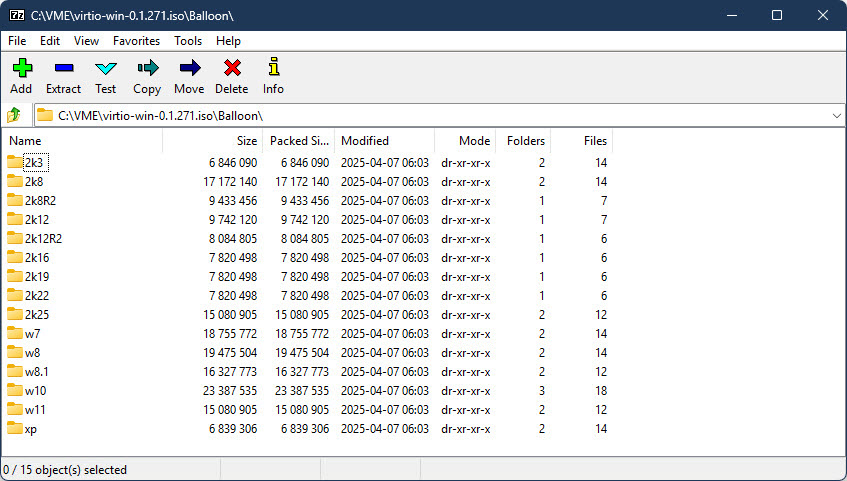
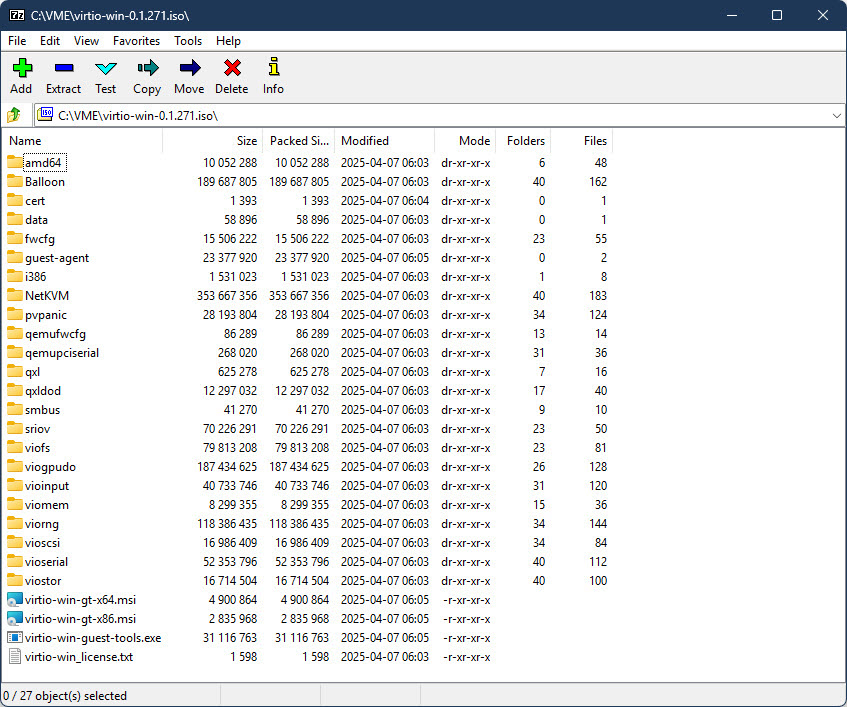
First you will want to extract the .iso image somewhere (I will be using C:\VME\virtio-win-0.1.271 here) with 7-Zip (I am going to assume you already have this .iso downloaded, if not you can find the latest version here).  If you look at the contents of the .iso, you’ll find it includes drivers for many Windows OS versions including XP, W7, W8, W10, W11, plus all the server versions from 2003 to 2025.

If you are going to migrate a Windows Server 2022 VM (which is what I’m using as my OS for this post), you probably don’t want to inject the drivers for Windows XP!  Now if you are energetic, you could just go manually delete all those OS folders in each driver class, or manually just pick out the drivers you want.  I’m not energetic however, and I prefer to work smarter not harder (some might call it lazier though) so I use PowerShell to only give me the drivers I actually need.

Open a PowerShell prompt and paste the following commands:

$ParentPath = "C:\VME\virtio-win-0.1.271"
$FolderToKeep = "2k22"
Get-ChildItem -Path $ParentPath -Directory | Select Name | Foreach {
$Name = $_.name
$ParentFolder = $ParentPath + "\" + $Name
Get-ChildItem -Path $ParentFolder -Directory -Exclude $FolderToKeep | Remove-Item -Recurse -Force
}

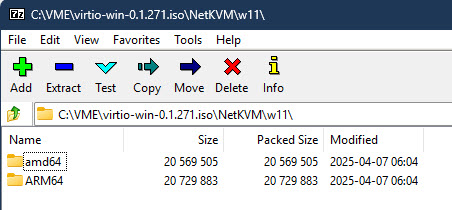
In the example above, Get-ChildItem will go through every top level folder inside of C:\VME\virtio-win-0.1.271 and delete any folder not named 2k22, leaving you with just the drivers for Windows Server 2022. I then like to rename C:\VME\virtio-win-0.1.271 to WIN2022_VIRTIO_DRIVERS (just makes it easier to differentiate for the OS, obviously I replace the Windows version as required in the folder name). As I am constantly building new images and will have a multitude of different OSes for migration, I went ahead and repeated the above steps until I had separate folders for W10, W11, W2016, W2019, W2022, and W2025. One thing to note is that for W11, the drivers are further divided into AMD64 and ARM64 folders under the W11 folder. This is where I became lazy and just manually deleted the ARM64 folders as I don’t expect to ever need them and I only wanted the AMD64 drivers for W11.

At this point, I recommend you go into the WIN2022_VIRTIO_DRIVERS folder and removed the x86 .msi file and also manually removed the i386 folder out of the root (it has W10 x86 drivers in it). And remove the i386 .msi in the guest-agent folder (you aren’t going to need these unless you are running a 32 bit Windows instance).

Since you are going to be copying WIN2022_VIRTIO_DRIVERS to every Windows 2022 Server VM you are going to migrate I also recommend you drop a copy of the PowerShell script to remove VMware Tools into this folder too, which you will run after the migration process. Here’s a link to the script I have been using to remove VMware Tools after migration: https://gist.github.com/broestls/f872872a00acee2fca02017160840624 (thank you Sean Broestl for creating this script)

Now copy WIN2022_VIRTIO_DRIVERS to C:\ in the Windows 2022 Server VM that you want to migrate to VME.

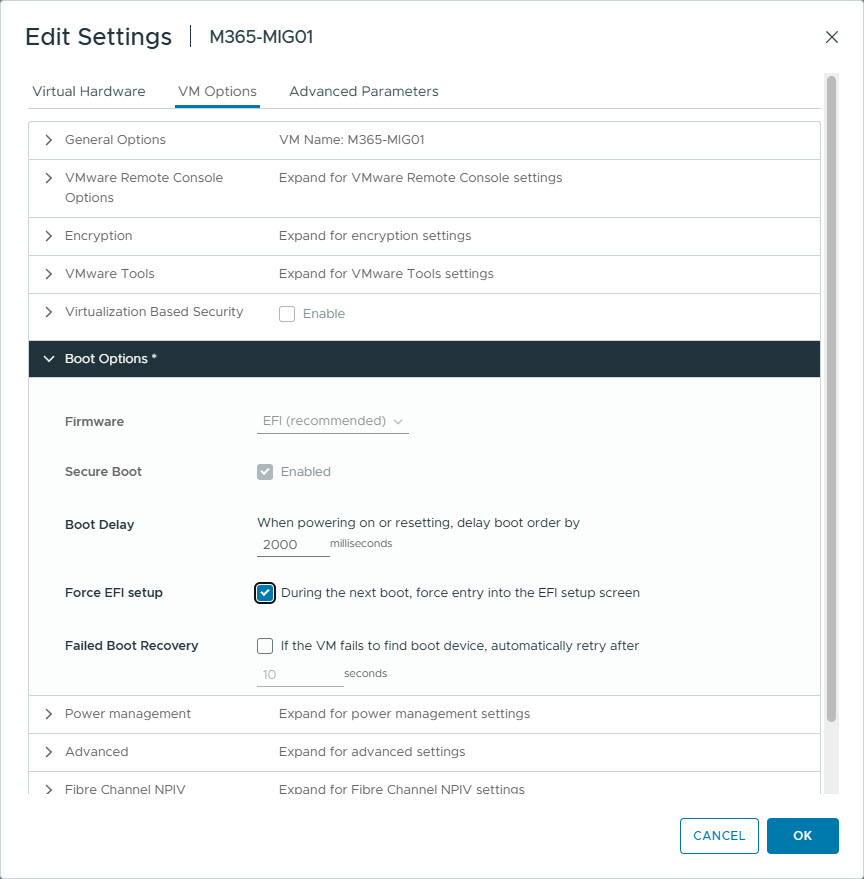
Connect to the VMware Remote Console of that VM and attach the Windows Server 2022 .iso to it. Now edit the VM to force it to boot to UEFI setup (so you can select the .iso to boot from), and reboot the VM.

Once at the UEFI boot menu, select the CD drive and wait for the Windows 2022 Server setup to start.

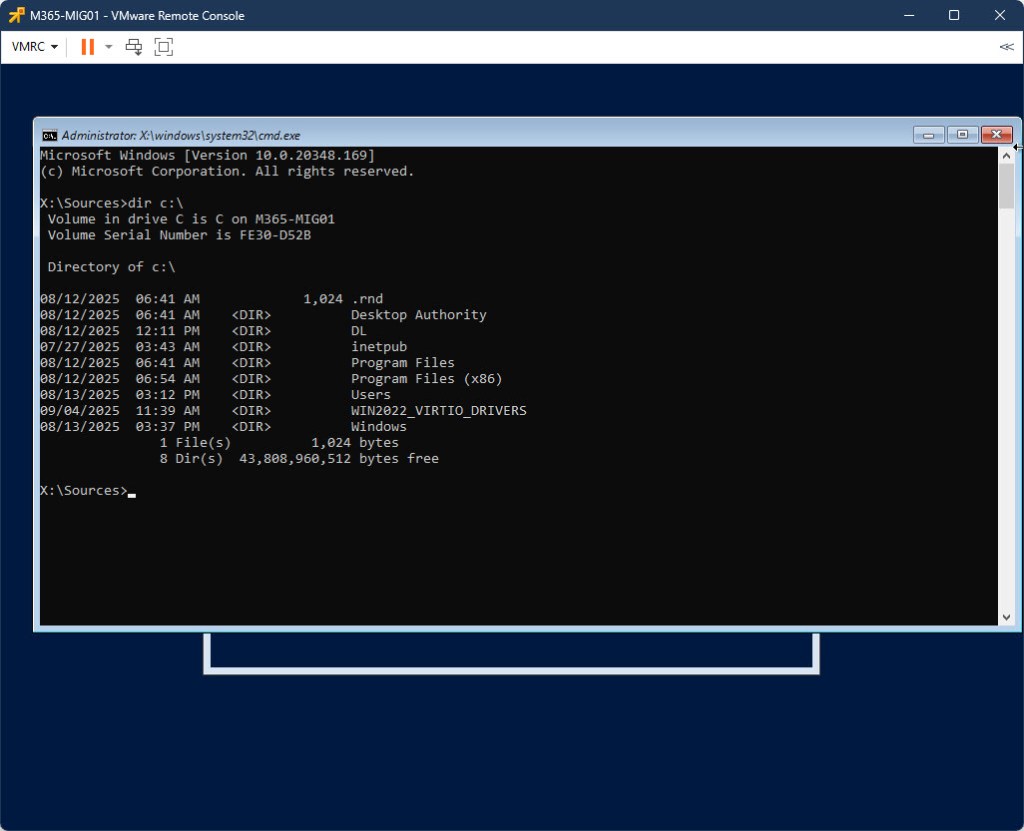
Once at the Setup Welcome screen, and within the VMware Remote Console, press SHIFT + F10 to open a command prompt and verify you can see the C: drive (including the WIN2022_VIRTIO_DRIVERS folder). If necessary scroll through all the drive letters until you find it and substitute C: for that drive letter for the next step. If you do not see your drive, then you probably need to inject the VMware SCSI drivers into your .iso image (which is a totally different blog post).

Now inject the drivers into C:\Windows using the following command:

dism /image:c:\ /add-driver /driver:c:\WIN2022_VIRTIO_DRIVERS /recurse

You can safely ignore any “Error 50” messages (if you see any) – it’s not relevant to this process. Once the drivers have been added, reboot the VM with the following command:

wpeutil reboot

Once back in Windows, install C:\WIN2022_VIRTIO_DRIVERS\virtio-win-gt-x64.msi and reboot again.

Do not bother running C:\WIN2022_VIRTIO_DRIVERS\virtio-win-guest-tools.exe yet – it will fail to install because the hypervisor is still VMware.

Make sure you disconnect the .iso image from the VM before continuing. At this point – your VM is ready for migration. I will be covering the actual migration process in a different post, however the follow up steps related to this post are below.

Once you have migrated your virtual machine from VMware to VME, log back into the VM. VMware Tools will mostly crash on login. Ignore this for a moment and run C:\WIN2022_VIRTIO_DRIVERS\virtio-win-guest-tools.exe. Once that is done, open PowerShell and run C:\WIN2022_VIRTIO_DRIVERS\Remove_VMwareTools.ps1. Reboot when the script finishes, and you should now have a working VM migrated from VMware to VME!

HOWTO: Convert a HPE VME VM from UEFI to BIOS and back

I recently migrated a virtual machine from VMware to HPE VM Essentials (VME) and discovered that the migration process created the new VME VM as UEFI based when it was actually supposed to be BIOS based, and a result, the OS would not boot under VME.  Unfortunately, at the time of this writing, VME Manager (8.0.9) does not provide any means to accomplish this via the WebUI in Manager.  This meant I needed to edit the VM definition and change it.  While it is possible to accomplish, this is very unsupported by the VME team as you need to manually edit the .xml definition file (which they do not support).  That said, I’m guessing if you are hear reading this, you don’t care and just want your VM to boot…  So lets get to it!

Please note:  Use any tips, tricks, or scripts I post at your own risk.

From the HVM host console that hosts the VM, ensure the VM is shut off and then run:

virsh edit VMNAME

(Note – VMNAME is case-sensitive throughout these instructions)

Approximately 24 lines down, you will see the following two sections for <os> and <features> (if the VM is UEFI based):

<os>
<type arch='x86_64' machine='pc-q35-8.2'>hvm</type>
<loader readonly='yes' secure='yes' type='pflash'>/var/morpheus/kvm/OVMF_MVM.fd</loader>
<nvram template='/var/morpheus/kvm/OVMF_VARS.fd'>/var/lib/libvirt/qemu/nvram/VMNAME_VARS.fd</nvram>
<bootmenu enable='no'/>
<smbios mode='sysinfo'/>
</os>
<features>
<acpi/>
<apic eoi='on'/>
<hyperv mode='custom'>
<relaxed state='on'/>
<vapic state='on'/>
<spinlocks state='on' retries='8191'/>
<vpindex state='on'/>
<synic state='on'/>
<stimer state='on'/>
</hyperv>
<smm state='on'/>
</features>

(Note – I apologize because the xml formatting above is not correct – I’ve struggled the last hour with WordPress.com’s stupid editor to fix this and I give up – it’s a piece of shit, and they want to charge me a bunch more money to get a plugin to fix this, which I refuse to do).

To convert this VM to BIOS based, delete the following two lines from <os>:

<loader readonly=’yes’ secure=’yes’ type=’pflash’>/var/morpheus/kvm/OVMF_MVM.fd</loader>
<nvram template=’/var/morpheus/kvm/OVMF_VARS.fd’>/var/lib/libvirt/qemu/nvram/VMNAME_VARS.fd</nvram>

Also delete the following line from <features>:

<smm state=’on’/>

To delete lines in virsh edit, you can just put your cursor on the line to delete and press the letter d twice quickly.  To save the configuration in virsh, press Esc, : (colon), and enter wq! and hit enter.  Assuming you did not mess the editing up, the file will save.  If you see “Failed. Try again? [y,n,i,f,?]”, then press N to completely discard the changes you made and start again.  Pressing Y will take you back to the configuration with your changes still present, but unless you know exactly what you did wrong, I do not recommend doing this.

Remove the now unrquired NVRAM file:   rm /var/lib/libvirt/qemu/nvram/VMNAME_VARS.fd

Now you should be able to start your VM  (virsh start VMNAME)

If need to convert from BIOS to UEFI, use the same method, except in virsh edit, press the letter i (eye) to enter insert mode and update the <os> and <features> sections to mirror above.  Take note that you need to update the NVRAM file name, and then back in the console will you need to:

cp /var/morpheus/kvm/OVMF_VARS.fd /var/lib/libvirt/qemu/nvram/VMNAME_VARS.fd

Then you should be able to start your VM.

dcc

HOWTO: Recover a failed firmware update on a #HPE / #Marvell Ethernet Adapter

It’s no secret that I exclusively utilize HPE’s oem’d Marvell Ethernet and FC adapters in not only my own servers, but all of my customers servers too. For the most part, they work great, they are feature rich compared to the competition, and lets face it, they are cost effective. The downside is that the firmware updating process provided by HPE is not overly robust, and has more than once left me with a bricked adapter. Once bricked, the adapter still appears in the ILO and server inventory, but doesn’t show any ports, MAC addresses, etc. So then I have to wait for HPE PointNext to dispatch a field tech to replace the bricked card because apparently they do not know how to fix it.

While troubleshooting another issue a while back with both the HPE ILO and Marvell Ethernet firmware development teams, the topic of bricked, borked, or otherwise dead adapters after failed HPE firmware updates came up. One of the Marvell engineers shared with me how to bring these adapters back to life, and I’m going to re-share that here. It’s a relatively easy process, and saves you from having to call to HPE support and waiting for PointNext to come replace it.

My screenshots below are based on a DL380 Gen9. As near as I can tell, this works on both Intel and AMD based Gen9 and Gen10 servers (I have definitely tested it on DL360 Gen9, DL360 Gen10, DL380 Gen9, DL380 Gen, DL325 Gen10 and DL385 Gen10). So just because the screenshots below may not look exactly like your system, the same basic steps will apply.

And as always before I begin:

Use any tips, tricks, or scripts I post at your own risk.

First, you need to extract the current firmware from the HPE executable with 7-Zip. Ideally you’ll want just the firmware .bin file in it’s own folder.

Next open Internet Explorer, log into the ILO and opened the .NET ILO console. Reboot the server to the RBSU and select embedded applications.

From the Virtual Drives drop down menu, select Folder. If you do not see Folder listed there, then you did not use Internet Explorer and / or the .NET ILO console, which is required to be able to mount a folder via the ILO.

Navigated to the folder where the extracted the firmware is and picked the folder that had the .bin file in it.

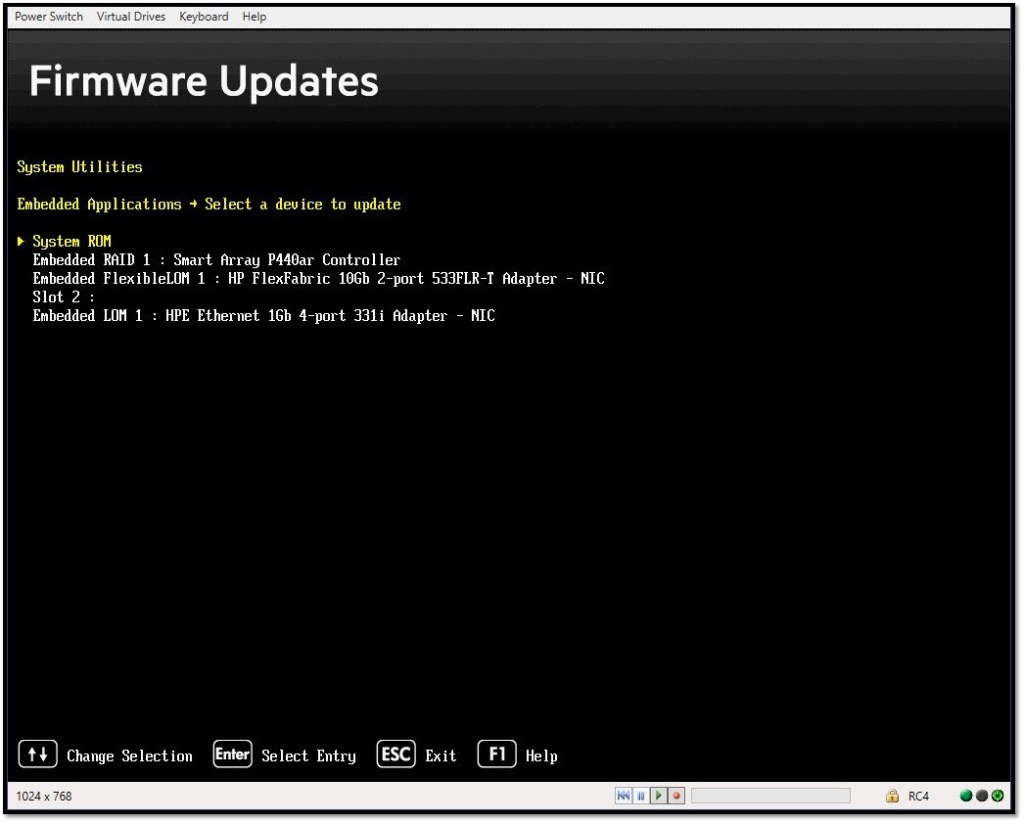
Select Firmware Update from the list of Embedded Applications, then select the adapter that requires reflashing from the list of devices.

*** Note that depending on the bricked-ness of the adapter – it may not actually appear as it’s real name – but it should be obvious which device it is by process of elimination.

At the Firmware Updates menu, select “Select a firmware file”   (**note – this particular 533FLR-T used in these screenshots is not bricked and the “Current Firmware Version” on this 533FLR-T is actually what I’m reflashing with, so the pictures may be differ slightly from what you see on screen)…

When prompted, select “[iLO Folder] iLO Virtual USB 1 : HP iLO Virtual USB Key”.

**Note – the naming of this varies depending on the BIOS version and generation of the Proliant – but the iLO Folder should be obvious in the list.

Select the firmware .bin file from the list presented…

**Note – with Gen10, I’ve noticed that sometimes the file names are truncated to 8.3, so this is why I suggest having only the .bin file in the folder presented via the ILO as it makes it alot easier to pick the right file then!

The new firmware file will load.  It generally about 10 to 15s.

Hit Start Firmware Update (as shown in the prior screenshot 3 above)…

The update process will take between 30 and 60s generally.

Once completed, exit back to the RBSU, and cold boot the host via the ILO.

Upon reboot – your Ethernet card will be back alive and ready to go again!

HOWTO: Mass delete photos and videos from an iOS device with @SkyjosApps #FTPManager

Recently, I decided to clean up my iPhone’s storage.  I had somewhere around 4500+ photos and videos on it, that had all been uploaded to my Dropbox account, and I really didn’t need them on my phone anymore.  The issue is that Apple’s iOS has no built in mechanism to delete all photos and videos on a device at once (with a “delete all” or “select all” button), so the end user is left with one of two options. Manually select each photo and delete it, or factory reset their device.  Now the funny thing is Apple provides a way to mass delete all the music on the device, but not all the photos, which is a pretty major blunder / oversight in my opinion.

I really didn’t want to reset to my device to defaults, so like you who are reading this post right now, I hit Google in search of a solution, but I never found a good one (until now if I may say so myself!!!).  I started to lean towards the factory reset to defaults, and as such, I began to document the apps I had on my phone so I could put back what I really needed afterwards.

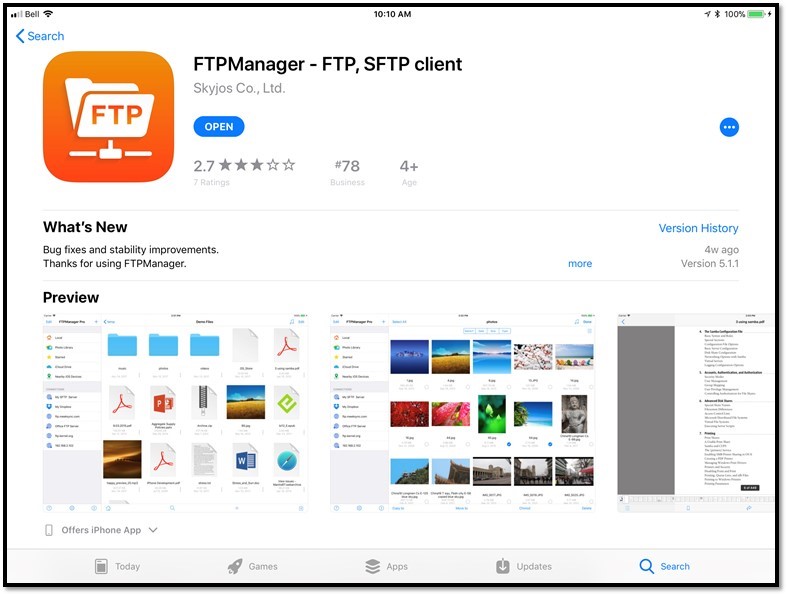
One of the apps I have on my phone and utilize from time to time is FTPManager Pro (the free version is pictured below in my screen shots from both my iPad and iPhone) which is developed by Skyjos Co. Ltd.

PHOTO1

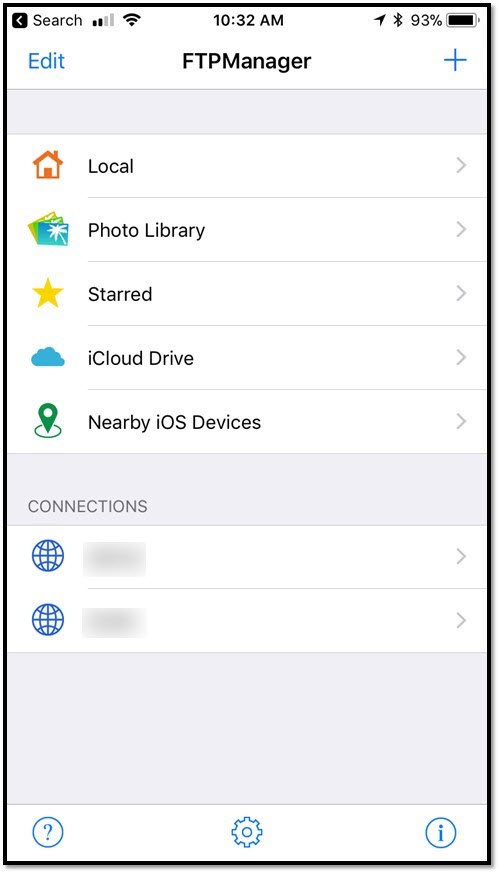
When I opened up FTPManager on my phone, I noticed that Photo Library was an option (which I hadn’t really paid attention to previously).

PHOTO2

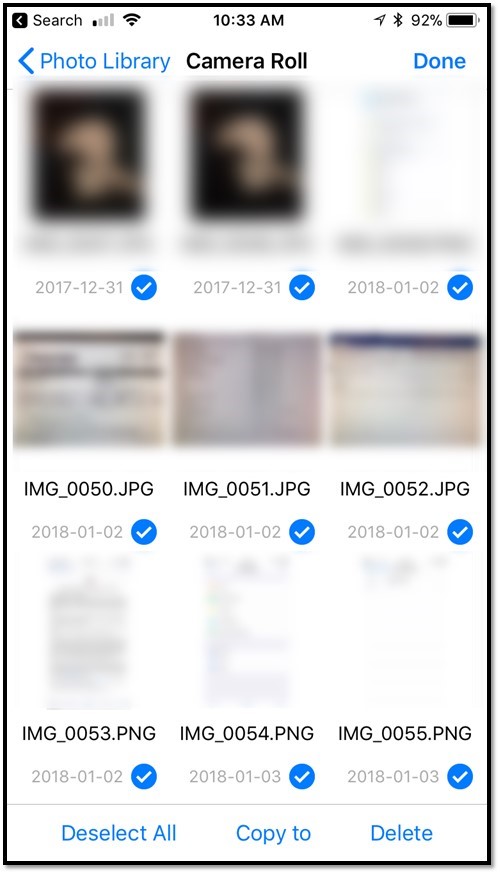
Jumping into Photo Library allowed me to access my Camera Roll where I noticed an Edit button at the top of the screen.

PHOTO4

Well guess what that Edit button does…  It gives you a “Select All” button at the bottom of the screen and a Delete button.

PHOTO5

Sure enough – hitting Select All then Delete immediately deleted all my photos and videos (well, maybe not immediately since there were 4500+ items), freeing up several GB of space on my iPhone.

So the next time you run into a jam on your iOS device because you are low on space and need to mass delete your photos and videos without resetting your device to defaults, install FTPManager from Skyjos Co. Ltd. and use it’s mass delete feature.

Or better yet, just spend the $3 and purchase FTPManager Pro and support the developer who just saved you a whole bunch of time and trouble!

As always – Use any tips, tricks, or scripts I post at your own risk.

***Disclaimer – I have no affiliation with and have never had previous contact with Skyjos Co. Ltd other than I purchased their FTPManager Pro app some time ago and regularly use it because it’s a damn good app***

Do IT certifications even matter to customers anymore?

(Spoiler Alert – THEY SURE SHOULD ANYWAYS!!!)

I’ve been in this business for almost 20 years now. Those of you who are IT professionals that have been around just as long will know what the term “paper certifications” mean. In the late 90s and early 2000’s Microsoft’s server business had taken off and so had demand for their certification program. It seems everybody wanted to hop on the bandwagon of Microsoft certifications, but the problem was not everybody had the necessary skill set to pass the certification exams. Many individuals went online to exam cheat sites and bought the exam answers. This allowed them to go take the exam and get a piece of paper that said they were certified; even if they had done nothing more than memorized the test questions. This is where the term “paper certification” came from – they had a piece of paper that said they were certified but in reality they had no idea what they were doing. Unfortunately this devalued the certification for the rest of us that actually knew what we were doing and who valued our achievements.  Most vendors police their certifications nowadays to catch cheaters, so while some paper certification individuals still exist today, they are not nearly as rampant as they were in the early 2000’s.

Fast forward 10 to 15 years and you arrive at today where customers and employers appear to have totally forgotten about asking for certifications from those who do work for them.  To be honest I’m not sure why customers stopped asking for certified individuals to work their accounts. I guess it could be a couple different things. Maybe they just think everybody has a certification on everything since back then everybody and their dog had a certification for Microsoft products. Or it could be they got burned by some of these individuals with paper certifications and they decided it no longer matters whether they ask for certified individuals – they think they are still going to get burned in the end (a damned if you do, damned if you don’t scenario).

Regardless of the reasons that customers and employers have stopped asking about certification, I’m here to tell you that both customers and employers are still being burned today – but for not asking. We see all the time when we meet perspective new customers and have to evaluate their current environment to get a baseline of where they are at. So what do I mean when I say burned? I am referring to the fact that it costs them time, money, and potentially data loss. I think these three items are probably self-explanatory but if not here’s what I believe.

Money

This one should be pretty simple. If you are a customer buying a solution that hasn’t been checked or approved by an individual who is certified on the solution, then who’s to say the solution that you’re getting is going to work?  If it doesn’t work, it is going to cost you money to either replace it, upgrade it, or hire someone who is certified and knows what they are doing to install / fix it.

Time

Time goes hand-in-hand with money. First, if the solution is not suited for what you actually require, then the whole process has been a waste of time because you just end up starting over to replace it. This in turn is going to cost you more money due to lost productivity. And if the individuals that are installing the solution are not certified on the product, then is going to take them more time to deploy the solution – assuming they can even get it working. And the more time they spend trying to deploy the solution, the more money they are going to charge you.  Unless they are like one national reseller’s deployment team I have heard of who just gets up and walks out the door when the allotted installation hours and budget are gone, whether or not the solution is working – it didn’t matter.  Incidentally, I later learned that neither the sales team nor the installation team were properly certified on the solution they sold customer.  Whoops – but case in point.

Data loss

This is probably the scariest one of the three. I can’t tell you the number of times I’ve seen solutions designed and deployed by uninformed individuals (who never took a single course or exam on the product they are trying to sell or install) with multiple potential single points of failure. It’s been my experience that poorly designed solutions tend to have a higher rate of data loss events, or situations of very poor performance from normally high performance components. It’s funny because most of the time when I talk to these clients afterwards they tell me they would’ve spent extra money to have a properly designed and deployed solution had they known the disaster awaiting them that were going to have with their current solution.

Certified Confidence

On a very regular basis, I am asked to speak to CEOs and the board of directors that they report to on various IT subjects – from explaining what a SAN is to demoing how dangerous a drive-by-download can be. Thanks to my training, certifications and knowledge, I have the confidence to stand at the front of the boardroom table and establish my credibility as an expert or specialist in the day’s subject in front of the CEO and board of directors. This better positions my employer to succeed and win more business as it builds the customer’s confidence that I know what I’m talking about and that whatever I am proposing is correct for them.

Know your vendors

Vendors (such as Hewlett Packard Enterprise, VMware, Veeam, and Citrix) usually provide special treatment to those of us who are certified on their products. This special treatment can be anything from sneak peaks of upcoming products and plans for the next generation, to a high level of technical support. This additional knowledge and treatment allows us to better service our customers – whether by allowing us to plan your environment out to take advantage of new technologies we know are coming 12, 18, or 24 months down the road, or by bypassing the level one support queue and getting right to the vendor’s support guys who have seen and know it all. And usually the special treatment affords us the ability to interact with and give direct feedback to the engineers that design the technology we are certified on. I’ve personally been in a feedback session with a design engineer where he took my feedback and literally (right in front of the rest of the audience in attendance) implemented my change request in the source code for the next release (if you use HPE ILO and it’s Advance License – you are welcome that you can cut and paste all 25 characters now at once to activate it instead of 5 x 5 like an old Windows product key!).

As a Hewlett Packard Enterprise Gold Partner, we are mandated to obtain and maintain certain certifications as part of our partner status to not only sell certain products, but deliver services on those same products.  Unfortunately for all of us, “Joe’s Taxidermy and Computer Repairs” in the basement of that house down on the corner of your street has a basic reseller status that also allows him to sell you that 3Par you’ve always dreamed about.  But what are the odds that Joe has had time in between stuffing deer heads and mount antlers on rabbits to go and get the training and certifications to provide you that level of service that you really need? Is he going to know the minimum number of drives per controller, per enclosure, or per node pair?  Is he going to know that the node interconnects in a 7400 are directional and as such can only be installed one way?  Is he going to know how to setup that new StoreOnce you just ordered?  What about best practices for replication with Veeam?  Or Golden Master image optimization for XenDesktop?  Likely not.

And not all vendor partners are equal.  Yes, that large international web-based e-tailor your love is likely certified on what you are looking for – but demand they have someone in your local region that is certified to look after your needs, instead of someone from the other side of the country, or even the other side of the world in some cases!

Your call to action!

If you are an end-user or customer reading this – then you need to demand those partners and resellers you are working with prove they have the proper certifications for the projects they are working on for you.  Do not just casually ask them about it – but rather demand they prove their certifications before they get one more penny (err – nickel for my fellow Canadians) from you.  The ITCC (Information Technology Certification Council) make it quite simple via the TechCertRegistry (https://techcertregistry.org) for certified individuals to share their validated certifications with potential employers and customers. Check it out – utilize it, demand it!

If you are reseller or other partner reading this – and you don’t have or believe in certifications, then please keep on doing exactly what you are doing now.  It will make your customers easier picking for the rest of us that do, and for that – we thank you!

Windows 2012 R2 is unable to connect to HP StoreOnce CIFS shares

I ran into this issue the other day with a new HPE StoreOnce deployment. When attempting to connect to a CIFS share on a StoreOnce appliance (it does matter if it is physical appliance or VSA) from a Windows 2012 R2 server, the following error is received “The account is not authorized to log in from this station”.

1

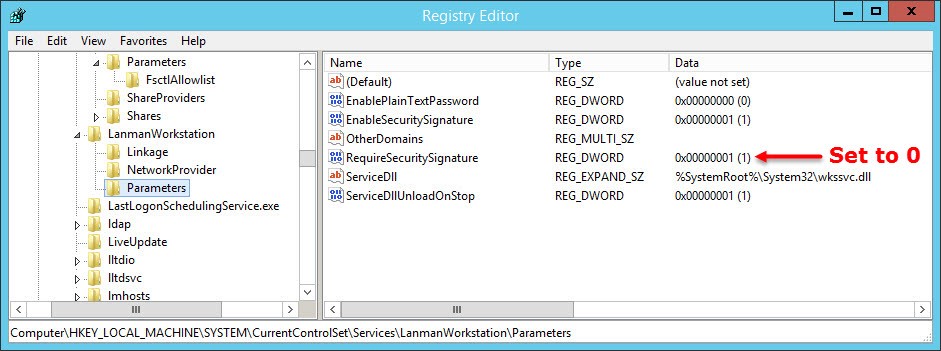
To fix this, navigate to HKEY_LOCAL_MACHINE\SYSTEM\CurrentControlSet\Services\LanmanWorkstation\Parameters and set RequireSecuritySignature = 0  and then reboot Windows.  When Windows comes back up, you should now be able to browse the CIFS share on the StoreOnce appliance.

2

HOWTO: Generate and self-sign Wildcard SSL certs in Ubuntu

Generate a CSR:

openssl req -new -newkey rsa:2048 -nodes -sha256 -out wildcard.domain.fqdn.csr -keyout wildcard.domain.fqdn.key -subj "/C=your_country/ST=your_state/L=your_city/O=your_organization/CN=*.domain.fqdn"

View the CSR:

openssl req -text -in wildcard.domain.fqdn.csr

Sign the certificate:

openssl ca -in wildcard.domain.fqdn.csr -out wildcard.domain.fqdn.cer -config /path/to/openssl.cnf

Convert the certificate to PFX:

openssl pkcs12 -export -out wildcard.domain.fqdn.pfx -inkey wildcard.domain.fqdn.key -in wildcard.domain.fqdn.cer

Covert the certificate to PEM:

openssl pkcs12 -in wildcard.domain.fqdn.pfx -out wildcard.domain.fqdn.pem -nodes