HOWTO: Inject the Virtio drivers in a Windows VM to prepare for migration to HPE VME

Last month HPE released VM Essentials 8.0.8 (given that I’ve been lazy over the summer, 8.0.9 is already available however as I write this) with built in support for migrating VMs from VMware to VME! One of the prerequisites for a successful migration is to inject the Virtio drivers in the VMware VM before starting the migration process. This is not just as simple as mounting the virtio-win-0.1.271 iso image in the VM and double clicking the virtio-win-gt-x64.msi to install it. You actually need to inject the drivers offline to properly accomplish this. And I’m going to show you here how to do that.

And as always before I begin:

Use any tips, tricks, or scripts I post at your own risk.

First you will want to extract the .iso image somewhere (I will be using C:\VME\virtio-win-0.1.271 here) with 7-Zip (I am going to assume you already have this .iso downloaded, if not you can find the latest version here).  If you look at the contents of the .iso, you’ll find it includes drivers for many Windows OS versions including XP, W7, W8, W10, W11, plus all the server versions from 2003 to 2025.
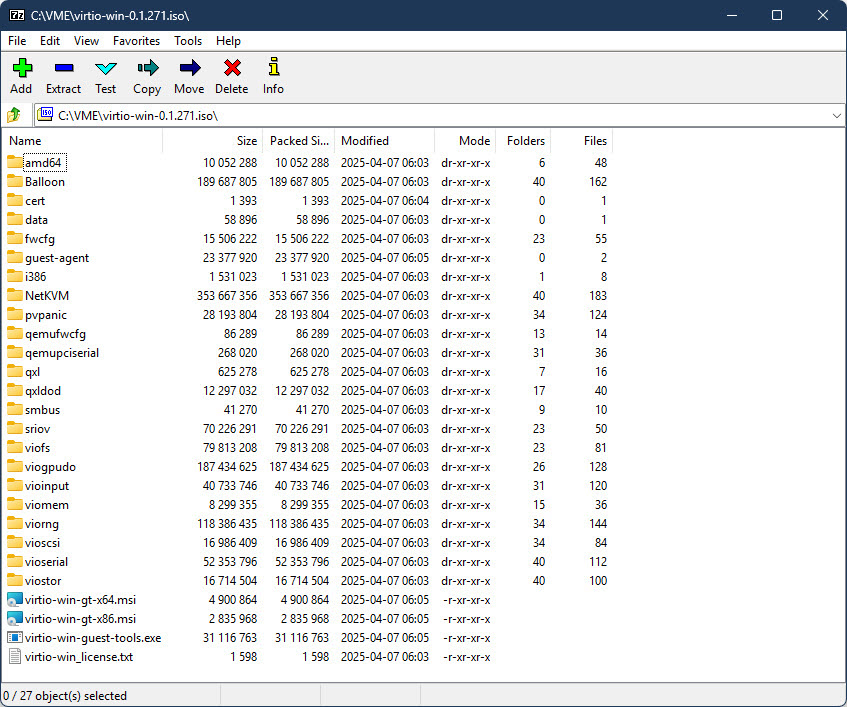
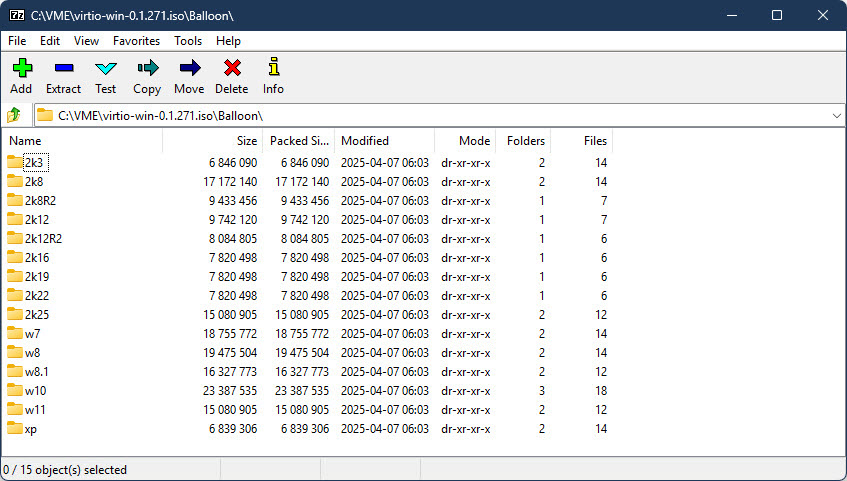
If you are going to migrate a Windows Server 2022 VM (which is what I’m using as my OS for this post), you probably don’t want to inject the drivers for Windows XP!  Now if you are energetic, you could just go manually delete all those OS folders in each driver class, or manually just pick out the drivers you want.  I’m not energetic however, and I prefer to work smarter not harder (some might call it lazier though) so I use PowerShell to only give me the drivers I actually need.

Open a PowerShell prompt and paste the following commands:

$ParentPath = "C:\VME\virtio-win-0.1.271"
$FolderToKeep = "2k22"
Get-ChildItem -Path $ParentPath -Directory | Select Name | Foreach {
$Name = $_.name
$ParentFolder = $ParentPath + "\" + $Name
Get-ChildItem -Path $ParentFolder -Directory -Exclude $FolderToKeep | Remove-Item -Recurse -Force
}

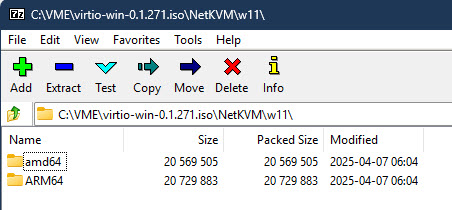
In the example above, Get-ChildItem will go through every top level folder inside of C:\VME\virtio-win-0.1.271 and delete any folder not named 2k22, leaving you with just the drivers for Windows Server 2022. I then like to rename C:\VME\virtio-win-0.1.271 to WIN2022_VIRTIO_DRIVERS (just makes it easier to differentiate for the OS, obviously I replace the Windows version as required in the folder name). As I am constantly building new images and will have a multitude of different OSes for migration, I went ahead and repeated the above steps until I had separate folders for W10, W11, W2016, W2019, W2022, and W2025. One thing to note is that for W11, the drivers are further divided into AMD64 and ARM64 folders under the W11 folder. This is where I became lazy and just manually deleted the ARM64 folders as I don’t expect to ever need them and I only wanted the AMD64 drivers for W11.
At this point, I recommend you go into the WIN2022_VIRTIO_DRIVERS folder and removed the x86 .msi file and also manually removed the i386 folder out of the root (it has W10 x86 drivers in it). And remove the i386 .msi in the guest-agent folder (you aren’t going to need these unless you are running a 32 bit Windows instance).

Since you are going to be copying WIN2022_VIRTIO_DRIVERS to every Windows 2022 Server VM you are going to migrate I also recommend you drop a copy of the PowerShell script to remove VMware Tools into this folder too, which you will run after the migration process. Here’s a link to the script I have been using to remove VMware Tools after migration: https://gist.github.com/broestls/f872872a00acee2fca02017160840624 (thank you Sean Broestl for creating this script)

Now copy WIN2022_VIRTIO_DRIVERS to C:\ in the Windows 2022 Server VM that you want to migrate to VME.

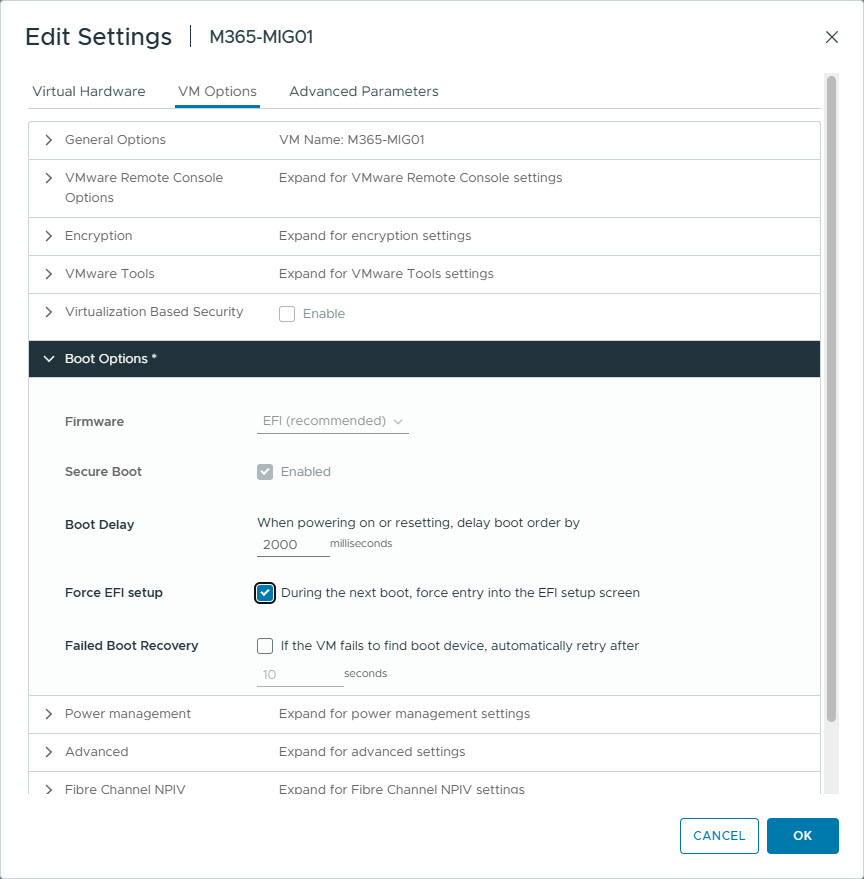
Connect to the VMware Remote Console of that VM and attach the Windows Server 2022 .iso to it. Now edit the VM to force it to boot to UEFI setup (so you can select the .iso to boot from), and reboot the VM.
Once at the UEFI boot menu, select the CD drive and wait for the Windows 2022 Server setup to start.

Once at the Setup Welcome screen, and within the VMware Remote Console, press SHIFT + F10 to open a command prompt and verify you can see the C: drive (including the WIN2022_VIRTIO_DRIVERS folder). If necessary scroll through all the drive letters until you find it and substitute C: for that drive letter for the next step. If you do not see your drive, then you probably need to inject the VMware SCSI drivers into your .iso image (which is a totally different blog post).
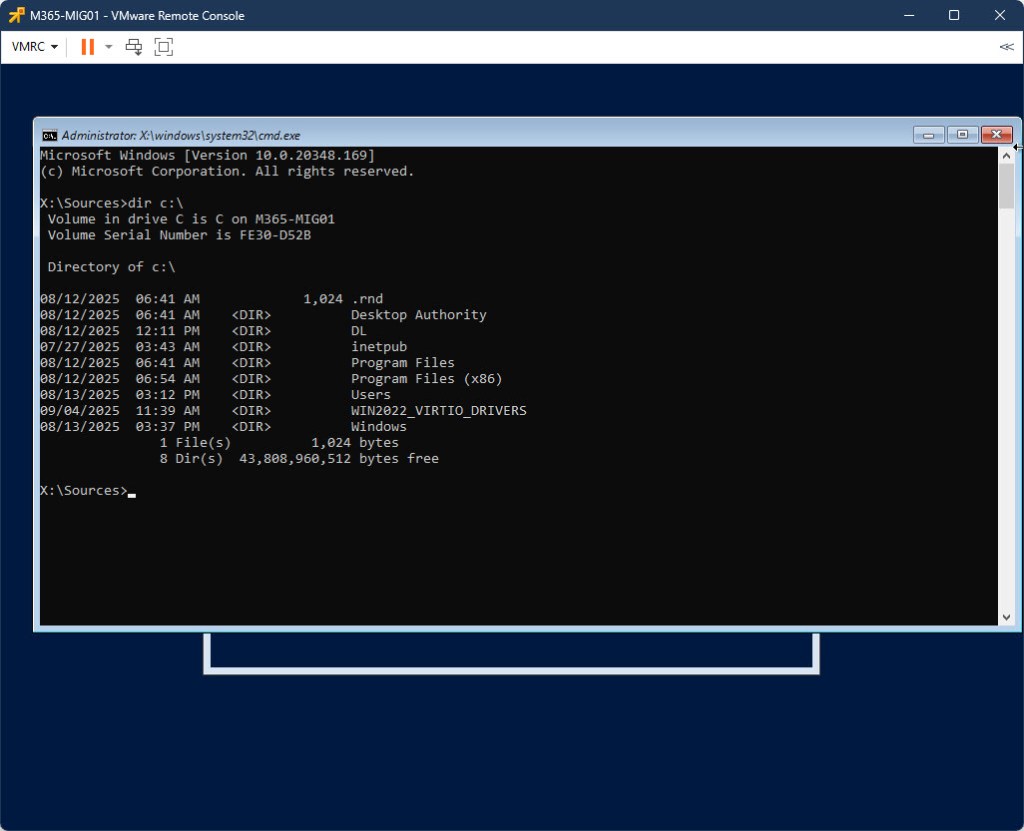
Now inject the drivers into C:\Windows using the following command:

dism /image:c:\ /add-driver /driver:c:\WIN2022_VIRTIO_DRIVERS /recurse

You can safely ignore any “Error 50” messages (if you see any) – it’s not relevant to this process. Once the drivers have been added, reboot the VM with the following command:

wpeutil reboot

Once back in Windows, install C:\WIN2022_VIRTIO_DRIVERS\virtio-win-gt-x64.msi and reboot again.

Do not bother running C:\WIN2022_VIRTIO_DRIVERS\virtio-win-guest-tools.exe yet – it will fail to install because the hypervisor is still VMware.

Make sure you disconnect the .iso image from the VM before continuing. At this point – your VM is ready for migration. I will be covering the actual migration process in a different post, however the follow up steps related to this post are below.

Once you have migrated your virtual machine from VMware to VME, log back into the VM. VMware Tools will mostly crash on login. Ignore this for a moment and run C:\WIN2022_VIRTIO_DRIVERS\virtio-win-guest-tools.exe. Once that is done, open PowerShell and run C:\WIN2022_VIRTIO_DRIVERS\Remove_VMwareTools.ps1. Reboot when the script finishes, and you should now have a working VM migrated from VMware to VME!
Updating the firmware of a list of HPE ILO 5 IPs via PowerShell

In addition to my previous blog post of upgrading a list of ILO 4’s firmware via PowerShell, I also wrote a similar script for ILO 5. However this script makes use of the iLO Repository and the .fwpkg file type, and does not rely on an IIS server for the ILO to pull the firmware file from. Other than that, it functions very similar to the ILO 4 update script I previously posted.

Below is my PowerShell code.  You’ll need to adjust it as required for your own environment.  Be sure to update the items in red where required.

And as always:
Use any tips, tricks, or scripts I post at your own risk.

### get ILORest here - https://downloads.hpe.com/pub/softlib2/software1/pubsw-windows/p1440367746/v177187/ilorest-3.0.1.0-8.x86_64.msi

Import-Module BitsTransfer
$url_zip = "https://downloads.hpe.com/pub/softlib2/software1/fwpkg-ilo/p991377599/v167897/ilo5_230.fwpkg"
$output_path = "C:\TEMP\ILO5"
$output_zip = $output_path + '\ilo5_230.fwpkg'
New-Item -Path $output_path -ItemType "Directory" -Force -Confirm:$false | out-null
Start-BitsTransfer -Source $url_zip -Destination $output_zip

$username = "ilo-username"
$password = "ilo-password"
$ILOrest = "C:\Program Files\Hewlett Packard Enterprise\RESTful Interface Tool\ilorest.exe"
$ILOlist = "$output_path\ilolist.csv"
'iloip' | Out-File $ILOlist
'192.168.11.230' | Out-File $ILOlist -Append

Import-Csv $ILOlist | Foreach {
$iloip = $_.iloip
$args = " flashfwpkg C:\DL\ILO5\ilo5_230.fwpkg --url " + $iloip + " -u " + $username + " -p " + $password
Start-Process -Wait -Filepath $ILOrest -ArgumentList $args
}

Updating the firmware of a list of HPE ILO 4 IPs via PowerShell

Recently, I had to update a bunch of HPE ILO 4s at multiple locations. Most of my managed sites have between 3 and 9 ILOs that need updated when HPE pushes out an ILO firmware update. I could have used ILO federation group firmware update, or the ILO Amplifier Pack to do this, but I’m a fan of scripting things so I just have to RDP a server onsite, open a prompt and paste a few lines of code and let it start doing it’s thing, then RDP the next site and do the same thing. So I built a PowerShell script to download the ILO 4 update, extract the .bin file, copy it an IIS server, and then proceed to upgrade each ILO one a time utilizing the ILO RestAPI.

Below is my PowerShell code.  You’ll need to adjust it as required for your own environment.  Be sure to update the items in red where required.  Keep in mind your IIS server ($iisip) will need to have a mime type associated with bin files for this to work.

And as always:

Use any tips, tricks, or scripts I post at your own risk.


### get ILORest here if you need it - https://downloads.hpe.com/pub/softlib2/software1/pubsw-windows/p1440367746/v177187/ilorest-3.0.1.0-8.x86_64.msi

Import-Module BitsTransfer
$url_zip = "https://downloads.hpe.com/pub/softlib2/software1/sc-windows-fw-ilo/p1012384589/v186433/cp045313.exe"
$binname = "ilo4_275.bin"
$output_path = "C:\TEMP\ILO4"
$output_zip = $output_path + '\cp045313.exe'
$binpath = $output_path + "\" + $binname
$iisip = "192.168.11.4"
$iispath = "\\" + $iisip + "\c$\inetpub\wwwroot\" + $binname
New-Item -Path $output_path -ItemType "Directory" -Force -Confirm:$false | out-null
Start-BitsTransfer -Source $url_zip -Destination $output_zip
$7zpath = "C:\Program Files\7-Zip\7z.exe"
$7options = "e "+ $output_zip + " " + "-o" + $output_path + " *.bin"
Start-Process -Wait -Filepath $7zpath -ArgumentList $7options
Copy-item -path $binpath -destination $iispath -force -confirm:$false

$username = "ilo-username"
$password = "ilo-password"
$ILOrest = "C:\Program Files\Hewlett Packard Enterprise\RESTful Interface Tool\ilorest.exe"
$ILOlist = "$output_path\ilolist.csv"
'iloip' | Out-File $ILOlist
'192.168.11.230' | Out-File $ILOlist -Append
'192.168.11.231' | Out-File $ILOlist -Append

Import-Csv $ILOlist | Foreach {
$iloip = $_.iloip $args = " firmwareupdate http://" + $iisip + "/" + $binname + " --url " + $iloip + " -u " + $username + " -p " + $password Start-Process -Wait -Filepath $ILOrest -ArgumentList $args }


HOWTO: Set the creation and modification timestamp on a file via #PowerShell

Recently, I updated one of our internal tool kits, and then packaged it for distribution.  It was a busy day when I updated it, so I didn’t manage to package it on the same day as I had updated / built / compiled it.  Internally, we use the date as the version number of the tool (occasionally suffixed with a letter which indicates my screw-ups in the build process on that given day).  In this particular case, the version number was 2018-11-24b, indicating I updated it on 2018-11-24, and that this was the 3 revision (no suffix, a, then b) that I had created on 2018-11-24 (I found bugs in the first two after testing the packaging).

Because I wasn’t packaging on the same day as I updated it, the time stamps on my archives didn’t match the build date, so I need to change them – all of them!  So I figured up PowerShell and used it instead.  Below are the commands necessary to view and set both the creation and modification timestamps on a file via an elevated PowerShell prompt.

As always – Use any tips, tricks, or scripts I post at your own risk.

To view the file creation timestamp:

(Get-ChildItem “c:\path\file_to_change.wim”).CreationTime

To set the file creation timestamp:

(Get-ChildItem “c:\path\file_to_change.wim”).CreationTime = ’11/24/2018 11:24AM’

To view the file modification timestamp:

(Get-ChildItem “c:\path\file_to_change.wim”).LastWriteTime

To set the file modification timestamp:

(Get-ChildItem “c:\path\file_to_change.wim”).LastWriteTime = ’11/24/2018 11:24AM’

To set the creation and modification timestamp on every single file in a folder:

foreach ($objFile in Get-ChildItem “c:\path\*”) {$objFile.Creationtime = ’11/24/2018 11:24AM’}

foreach ($objFile in Get-ChildItem “c:\path\*”) {$objFile.LastWriteTime = ’11/24/2018 11:24AM’}


HOWTO: Permanently replace the ugly Windows 10/2016 login screen background and colors for all users with #PowerShell

I can’t stand the default Windows 10 and Windows Server 2016 logon background, and one of the first things I do when I build a new Windows template at a customer site is wipe that default background out!  I typically replace it with a single solid color, and I’m kind of fond of the old blue backgrounds that came with Windows XP (or was it Windows NT 4 – or may Windows 2000, I don’t remember now) as they are easy on the eyes… Anyways – the background color I like and use has a RGB value of 58 110 165.

I used to have a basic batch file to wipe it Microsoft’s stock background out by copying an existing background over from my staging server, but with every iteration of Windows 10 and Windows Server 2016, the path to img100.jpg in C:\Windows\WinSxS changes.  So last night I decided it was time to use some PowerShell to take care of this menace and allow the script to run on multiple platforms and software updates.

I struggled with creating a new solid color background jpg in PowerShell using the RGB value I wanted, but eventually I found some code that someone had posted elsewhere on how to create a gradient jpg, so I snagged it and set the gradient to be same at the end as the beginning, which results in a solid color all the way across.  I’m sure someone with better skills than me could clean this up properly – but this suits my purposes for what I need so I stopped searching for a better way.

So basically what this script does is create a new jpg that is 640×480 in C:\Windows\Web\Wallpaper\Staging, adjusts the accent colors for the current user and the default user profile, finds the path to img100.jpg and replaces it after taking ownership and setting appropriate ntfs rights to it, then clears out the lock screen jpgs using RoboCopy.  The lock screen jpgs are owned by the System account, and Robocopy /mir /zb is the simplest way to wipe them out that I know of without using Sysinternals Suite psexec to involve System account privileges and delete the jpgs.

You definitely need to run this in an elevated PowerShell session too!

As always – Use any tips, tricks, or scripts I post at your own risk.

New-Item -Path "C:\Windows\Web\Wallpaper\Staging" -ItemType "Directory" -Force -Confirm:$false | out-null
Add-Type -AssemblyName System.Drawing
$newbackground = New-Object System.Drawing.Bitmap 640, 480
[System.Drawing.Graphics]::FromImage($newbackground).FillRectangle(
(New-Object System.Drawing.Drawing2D.LinearGradientBrush(
(New-Object System.Drawing.Point(0, 0)),
(New-Object System.Drawing.Point(640, 480)),
[System.Drawing.Color]::FromArgb(58, 110, 165),
[System.Drawing.Color]::FromArgb(58, 110, 165))),
0, 0, $newbackground.Width, $newbackground.Height)
$newbackground.Save('C:\Windows\Web\Wallpaper\Staging\background.jpg',[System.Drawing.Imaging.ImageFormat]::Jpeg)
copy-item -path C:\Windows\Web\Wallpaper\Staging\background.jpg -destination c:\windows\web\wallpaper\background.jpg -force -confirm:$false
REG LOAD HKEY_USERS\ZZZ C:\USERS\DEFAULT\NTUSER.DAT
REG ADD "HKEY_USERS\ZZZ\SOFTWARE\Microsoft\Windows\CurrentVersion\Explorer\Accent" /f /v "StartColor" /t REG_DWORD /d 0xffa66c39
REG ADD "HKEY_USERS\ZZZ\SOFTWARE\Microsoft\Windows\CurrentVersion\Explorer\Accent" /f /v "AccentColor" /t REG_DWORD /d 0xffb51746
REG UNLOAD HKEY_USERS\ZZZ
REG ADD "HKEY_USERS\.DEFAULT\SOFTWARE\Microsoft\Windows\CurrentVersion\Explorer\Accent" /f /v "StartColor" /t REG_DWORD /d 0xffa66c39
REG ADD "HKEY_USERS\.DEFAULT\SOFTWARE\Microsoft\Windows\CurrentVersion\Explorer\Accent" /f /v "AccentColor" /t REG_DWORD /d 0xffb51746
REG ADD "HKEY_CURRENT_USER\SOFTWARE\Microsoft\Windows\CurrentVersion\Explorer\Accent" /f /v "StartColor" /t REG_DWORD /d 0xffa66c39
REG ADD "HKEY_CURRENT_USER\SOFTWARE\Microsoft\Windows\CurrentVersion\Explorer\Accent" /f /v "AccentColor" /t REG_DWORD /d 0xffb51746
REG ADD "HKEY_LOCAL_MACHINE\SOFTWARE\Microsoft\Windows\CurrentVersion\Explorer\Accent" /f /v "DefaultStartColor" /t REG_DWORD /d 0xffa66c39
takeown /f C:\ProgramData\Microsoft\Windows\SystemData /a /r /d y
takeown /f C:\Windows\Web\Screen\img100.jpg /a
icacls C:\Windows\Web\Screen\img100.jpg /grant Administrators:F
$lockscreen = "C:\ProgramData\Microsoft\Windows\SystemData\S-1-5-18\ReadOnly\LockScreen_Z"
$tempfolder = "C:\ProgramData\Microsoft\Windows\SystemData\S-1-5-18\ReadOnly\LockScreen_Temp"
$img100 = Get-ChildItem C:\Windows\WinSxS -Recurse -Include img100.jpg
write-host $img100
takeown /f $img100 /a
icacls $img100 /grant Administrators:F /q
copy-item -path c:\windows\web\wallpaper\background.jpg -destination $img100 -force -confirm:$false | out-null
copy-item -path c:\windows\web\wallpaper\background.jpg -destination C:\Windows\Web\Wallpaper\Windows\BlueBackground.jpg -force -confirm:$false | out-null
copy-item -path c:\windows\web\wallpaper\background.jpg -destination C:\Windows\Web\Screen\img100.jpg -force -confirm:$false | out-null
New-Item -Path $tempfolder -ItemType "Directory" | out-null
Robocopy $tempfolder $lockscreen /zb /mir /njh /njs
Remove-Item -Path $tempfolder -force -confirm:$false | out-null


HOWTO: #PowerShell script to download, extract and add #SysinternalsSuite to the path

I absolutely love Microsoft’s Sysinternals Suite – it’s an amazing set of tools for troubleshooting and tweaking Windows machines.  Heck – there isn’t a day goes by that I don’t use at least one of the tools out of the suite.  I generally try to download, extract and add the suite to the path of any computer I touch.

This morning while building a new 2016 template for a customer, I realized I had missed downloading and adding it to the path, but the VM was in a firewalled VLAN and unable to reach my staging and support server – so I couldn’t just grab the extracted directory from my staging server.  This got me to thinking there must be a simple way to use a cli or script to download, extract, and add the extracted folder to the computer’s path.  So I took 30 minutes and wrote one.

Basically, this script can be cut and pasted into an elevated PowerShell session, and it will grab the most recent SysinternalsSuite.zip from Microsoft, extract the .zip to C:\Program Files\SysinternalsSuite, and then add C:\Program Files\SysinternalsSuite to the computer’s path if it does not already exist in the path.

I’ve tested this with Windows 7, Windows 10 (1803), Windows Server 2012 R2 and Windows Server 2016.

As always – Use any tips, tricks, or scripts I post at your own risk.

Import-Module BitsTransfer
$url_zip = "https://download.sysinternals.com/files/SysinternalsSuite.zip"
$output_path = "C:\Program Files\SysinternalsSuite"
$output_zip = $output_path + '\SysinternalsSuite.zip'
Remove-Item -Path $output_path\*.* -force -confirm:$false
New-Item -Path $output_path -ItemType "Directory" -Force -Confirm:$false | out-null
Start-BitsTransfer -Source $url_zip -Destination $output_zip
Add-Type -AssemblyName System.IO.Compression.FileSystem
function Unzip
{
param([string]$zipfile, [string]$outpath)
[System.IO.Compression.ZipFile]::ExtractToDirectory($zipfile, $outpath)
}
Unzip $output_zip $output_path
Remove-Item -Path $output_zip -force -confirm:$false
$oldpath = (Get-ItemProperty -Path "Registry::HKEY_LOCAL_MACHINE\System\CurrentControlSet\Control\Session Manager\Environment" -Name PATH).path
If ($oldpath -NotLike "*SysinternalsSuite*") {
$newpath = "$oldpath;$output_path"
Set-ItemProperty -Path "Registry::HKEY_LOCAL_MACHINE\System\CurrentControlSet\Control\Session Manager\Environment" -Name PATH -Value $newPath
}
$writtenpath = (Get-ItemProperty -Path "Registry::HKEY_LOCAL_MACHINE\System\CurrentControlSet\Control\Session Manager\Environment" -Name PATH).path
write-host $writtenpath


HOWTO: Using #PowerShell to ensure a #Veeam USB Repository always has the correct drive letter

Some time ago I had a customer who switched completely to Veeam from Backup Exec (yeah baby!!!).  Offsite replication of any sort was out of the question as the customer simply couldn’t get the necessary bandwidth from any of the ISPs that serviced the area at anything that even approached an unreasonable price.  Instead we opted for a HPE StoreOnce for onsite and some sort of removable drive system for daily offsite.  The customer insisted on using Western Digital My Books (USB3) due to their capacity (6TB) and semi-ruggedness for the offline repo.  The drives are rotated out each day by a staff member for a new drive and they send the previous night’s drive offsite.

The My Books were originally setup using F: as the drive letter.  This would work great until someone plugged a USB key into the server and it was auto-assigned F: by Windows 2012R2, or if someone logged in who had a drive mapping of F:.  And then other days, Windows would randomly assign a drive letter other than F: even though F: was available.  At this point, Veeam would puke because it couldn’t find the repo anymore.  And occasionally the customer would forget to swap the drive for a fresh one (or even correct drive some days), which meant there wouldn’t be enough free space on the repo to complete that night’s backup (about 4.9TB is processed daily).

To work around all this, I ended up writing a PowerShell script to always map the My Book to Z:, clean the previous backups off of it (if any were found, or if the wrong drive with a different backup set was plugged in), and start the actual backup job.  And if the script can’t find the My Book or free disk capacity is less than 95% after attempting cleanup, it will abort the backup and send an email warning to the support team that the backup was aborted.  Rather than have Veeam schedule the job to run, I use Windows Task Scheduler instead to run the script, then use the Veeam PowerShell module to start the backup job from inside the script after I’ve verified Z: is present.

This script assumes that every rotated My Book drive has been formatted and has a volume label containing “WD MY BOOK”.  It also assumes the SMTP server is called mail dot whatever the DNS domain name of the machine running the script is (i.e. my AD is jbgeek.net, so mail.jbgeek.net).  All of my client sites have a cname for their Exchange server called “mail” created in their AD DNS zone – which means I can cut and paste the same script without modification from one client site to another, which cuts down the chance of an editing error, and makes it quicker to deploy new scripts when necessary for my team.

You will need to adjust the “Get-ChildItem -Path” (lines 21 to 26) directories to fit your environment, along with the $SendEmailTo variable (line 7) and the “Start-VBRJob -Job” job name (line 41).  Line 28 defines the cutoff point for disk capacity – if the available disk space is less than 95% of the drive capacity, the backup aborts.  Line 1 is commented it out – I generally always start my scripts with # start notepad++ script.filename so that I can just cut and paste it into a command prompt to create my script file – that way as I on-board each new customer, their sites are configured the same as existing sites.  Again, it cuts down the chances of an error and makes it quicker for my guys to deploy new scripts.

**NOTE – the following deletes data from your backup cartridges. Use any tips, tricks, or scripts I post at your own risk.  I accept zero liability and responsibility if you use these scripts!!!**

Here is the command line to create the scheduled task to run as the logged in user at 10pm each weekday (it will prompt you for your password when you run it in a command prompt):

schtasks /create /tn "Weekday Veeam USB Drive Backup" /tr "\"C:\Windows\System32\WindowsPowerShell\v1.0\powershell.exe\" -ExecutionPolicy RemoteSigned -noprofile -File  C:\Windows\Run_External_Drive_Veeam_Backup.ps1" /sc daily /st 22:00:00  /rp "*" /ru "%userdomain%\%username%"

Here is the Powershell script (updated 2017.01.17 to fix an error):

# start notepad++ C:\Windows\Run_External_Drive_Veeam_Backup.ps1

add-pssnapin Veeam*

$DnsDomain = Get-WmiObject -Class Win32_NTDomain -Filter "DSDirectoryServiceFlag='True'" | Select -ExpandProperty DnsForestName
$ThisComputerName = Get-WmiObject -Class Win32_ComputerSystem | Select -ExpandProperty Name
$SupportEmailAddress = "support@$DnsDomain"

# Get-WmiObject Win32_Volume | Where-Object {$_.DriveLetter -eq $null}
$drives = Get-WmiObject -Class win32_volume | Where-Object {$_.Label -match "WD MY BOOK"}
$i = 0
Foreach($drive in $drives)
{
#Set letter
$DriveLetter = "Z:"
Set-WmiInstance -input $drive -Arguments @{DriveLetter="$DriveLetter"}
$i++
}

if (Test-Path -path Z:\){
Get-ChildItem -Path "Z:\Veeam\Backups\All VMs - Z Drive" -Include *.vbm -recurse | foreach { $_.Delete()}
Get-ChildItem -Path "Z:\Veeam\Backups\All VMs - Z Drive" -Include *.vib -recurse | foreach { $_.Delete()}
Get-ChildItem -Path "Z:\Veeam\Backups\All VMs - Z Drive" -Include *.vbk -recurse | foreach { $_.Delete()}
Get-ChildItem -Path "Z:\Veeam\Backups\All VMs" -Include *.vbm -recurse | foreach { $_.Delete()}
Get-ChildItem -Path "Z:\Veeam\Backups\All VMs" -Include *.vib -recurse | foreach { $_.Delete()}
Get-ChildItem -Path "Z:\Veeam\Backups\All VMs" -Include *.vbk -recurse | foreach { $_.Delete()}
$externaldrivelabel = Get-WmiObject -Class win32_volume | Where-Object {$_.Label -match "WD MY BOOK"} | Select -ExpandProperty label
Get-WmiObject -Class win32_volume | Where-Object {$_.Label -match "WD MY BOOK"} | % { if (($_.FreeSpace/$_.Capacity) -le '0.95' )
{Send-MailMessage -From "$($ThisComputerName.ToUpper())@$($DnsDomain.ToUpper())" -To "$SupportEmailAddress" `
-Subject "Backup Aborted due to low space on $($externaldrivelabel)." `
-Body  "Aborting nightly Veeam backup to $($externaldrivelabel) (Z:) on $($ThisComputerName.ToUpper()).$($DnsDomain.ToUpper()) due to low disk space." `
-Priority High -DNO onSuccess, onFailure -SmtpServer "mail.$DnsDomain"
break}
}
}
if (Test-Path -path Z:\){
Send-MailMessage -From "$($ThisComputerName.ToUpper())@$($DnsDomain.ToUpper())" -To "$SupportEmailAddress" `
-Subject "Now starting nightly Veeam backup to $($externaldrivelabel)." `
-Body  "Now starting nightly Veeam backup to $($externaldrivelabel) (Z:) on $($ThisComputerName.ToUpper()).$($DnsDomain.ToUpper())." `
-Priority High -DNO onSuccess, onFailure -SmtpServer "mail.$DnsDomain"
Start-VBRJob -Job "All VMs - Z Drive" -FullBackup -RunAsync
break
}else{
Send-MailMessage -From "$($ThisComputerName.ToUpper())@$($DnsDomain.ToUpper())" -To "$SupportEmailAddress" `
-Subject "Error:  No external backup drive (Z:) found on $($ThisComputerName.ToUpper()).$($DnsDomain.ToUpper())!!!" `
-Body  "Error:  Cannot find or mount the external backup drive (Z:) on $($ThisComputerName.ToUpper()).$($DnsDomain.ToUpper())!!!  Now aborting nightly backup to external hard drive!!!" `
-Priority High -DNO onSuccess, onFailure -SmtpServer "mail.$DnsDomain"
break
}

As always – Use any tips, tricks, or scripts I post at your own risk.

HOWTO: Converting from BackupExec to #Veeam when using RDX drives

Ok – I’m completely done with Backup Exec when it comes to VMware.  I’ve been selling, supporting, certified on and even using Backup Exec for our own internal backups since it was Conner Backup Exec for Windows NT 3.1, way back in 1993.  Once upon a time, it was a great product – in fact it was the only product for backups that worked worth a damn.  But it’s reliability has dropped to nothing over the past 6 or 7 years.  Technical support has been off-shored and 99.9% of the time, if I am lucky enough to finally reach someone in technical support on the phone, I can’t understand a damn word they say due to their thick accent and shitty VOIP lines crossing the Pacific Ocean.  Today was the last straw with Backup Exec, their crappy bugs, and unreliable VMware backups.  So now it’s time to fully embrace the move to Veeam, which I’ve been considering for some time (note of disclosure – I am also a certified Veeam VMCE – v7, v8, & v9)

Several of my clients have single standalone ESXi hosts, an HPE StoreOnce appliance, a physical Windows Server 2012R2 with a RDX drive or two (for offline backups), and both Backup Exec and Veeam loaded on that Windows server.  Oh – and many, many, many RDX cartridges that have months of rotated backups on them that are all three quarters full.  I can’t just erase all these cartridges in one swoop and use them for Veeam backups.  And I certainly don’t want to have to log into the clients’ servers everyday to manually delete the old Backup Exec folders off the RDX (as they come up in rotation) so that there is enough room for the nightly Veeam backup.  And finally, even though I’m dumping Backup Exec for my VMware backups, I still need to use Backup Exec to backup the 2012R2 physical instance to the same RDX cartridge that Veeam is going to use (atleast until Veeam releases their next project).  So what do I do?

A little PowerShell scripting to the rescue – that is what I am going do!

After going through a sampling of several RDX cartridges at several different client sites, I’ve determined that when Backup Exec runs with GRT enabled it dumps those backed up VMs in IMGxxxxxx folders on the root of the RDX drive (including the VMDKs).  I also discovered (or at least in the environments that I’ve setup) that GRT enabled application backups (not VMs, but rather SQL, AD, Exchange) will also be in an IMG folder with either a file called ntds.dit or edb.chk, and sometimes both!  In my case, my 2012R2 server has SQL and AD on it, so I want to be careful not to delete IMG folders that potentially contain my SQL and AD backups (which could screw Backup Exec up even more than normal when it uses that cartridge again for the 2012R2 server).

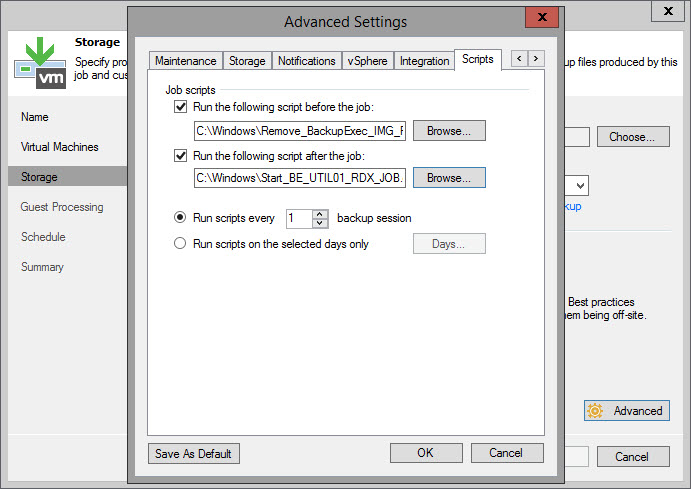
In the end, I setup the RDX drive as a new rotated drive repository in Veeam (prior to this Veeam only backed up to the HPE StoreOnce).  I then create a new Veeam job that did active fulls to the RDX drive every night (with a restore points to keep of 1).  In the job’s Advanced Settings menu, I added a pre-run script that runs C:\Windows\Remove_BackupExec_IMG_Folders.cmd.  This script in turn launches a PowerShell script that deletes all the IMGxxxxxx folders off the RDX drive except IMG folders that contain either ntds.dit or edb.chk.

**NOTE – the following deletes data from your backup cartridges. Use any tips, tricks, or scripts I post at your own risk.  I accept zero liability and responsibility if you use these scripts!!!**

Here is the contents of my batch file.

rem start notepad++ "C:\Windows\Remove_BackupExec_IMG_Folders.cmd"
PowerShell -NoProfile -ExecutionPolicy Bypass -Command "& {Start-Process PowerShell -ArgumentList '-NoProfile -ExecutionPolicy Bypass -File ""C:\Windows\Remove_BackupExec_IMG_Folders.ps1""' -Verb RunAs}"
exit/b

Here is the contents of the PowerShell script to remove the IMGxxxxxx folders (adjust the drive letter accordingly)

# start notepad++ "C:\Windows\Remove_BackupExec_IMG_Folders.ps1"
foreach ($i in Get-ChildItem R:\IMG*)
{if ((test-path "$i\ntds.dit") -eq $False -and (test-path "$i\edb.chk") -eq $False) {Remove-Item $i -force -recurse -confirm:$false}}

But wait! There is more!

Because I am still going to have to suffer with Backup Exec a while longer to backup my 2012R2 server, I need to make sure my nightly Backup Exec job doesn’t eject the RDX cartridge on me before Veeam finishes it’s RDX job.  To ensure this, I disabled the scheduled RDX jobs on my Backup Exec server.  Fortunately, Backup Exec includes a PowerShell module called BEMCLI.  So I wrote a second set of scripts as it was simply a matter of starting PowerShell from a script, importing the module, and starting the job.  So this time my scripts are a post-job script to start the Backup Exec job only after the Veeam job completes.

2017-01-11-16-33-43-snagit-0002

Here is the batch file to launch PowerShell.

rem start notepad++ "C:\Windows\Start_BE_UTIL01_RDX_JOB.cmd"
PowerShell -NoProfile -ExecutionPolicy Bypass -Command "& {Start-Process PowerShell -ArgumentList '-NoProfile -ExecutionPolicy Bypass -File ""C:\Windows\Start_BE_UTIL01_RDX_JOB.ps1""' -Verb RunAs}"
exit/b

And here is the PowerShell script to start the Backup Exec job called “23:10 UTIL01 RDX-Full”.

# start notepad++ "C:\Windows\Start_BE_UTIL01_RDX_JOB.ps1"
Import-Module BEMCLI
Get-BEJob -Name "23:10 UTIL01 RDX-Full" | Start-BEJob -confirm:$false

Now when my Veeam backup job to RDX starts, it deletes all the IMGxxxxxx folders off the RDX drive (unless those folders contain either ntds.dit or edb.chk), and when it completes, it starts the remaining Backup Exec job, which ultimately ejects the RDX cartridge when it completes.

As always – Use any tips, tricks, or scripts I post at your own risk.

HOWTO: Change a Windows’ network type from Public to Private via PowerShell

Stupid Windows Server 2016…  Stupid Windows 10…  Damn Microsoft…

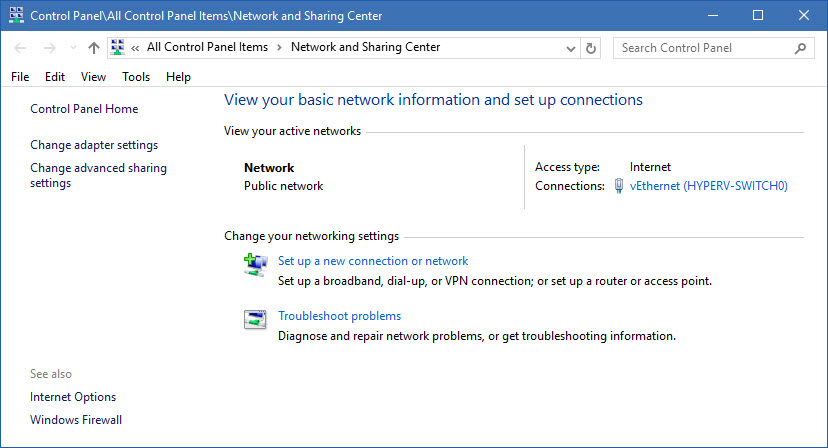
Ever find yourself with a network interface that is stuck as Public and no obvious way to change it via GUI?

2016-12-24-14-24-28-snagit-0024

Five simple PowerShell lines to the rescue!

Get-NetConnectionProfile
$Profile = Get-NetConnectionProfile -InterfaceAlias "interface_alias_name"
$Profile.NetworkCategory = "Private"
Set-NetConnectionProfile -InputObject $Profile
Get-NetConnectionProfile

2016-12-24-14-25-51-snagit-0025

2016-12-24-14-26-07-snagit-0026

And now your network type should be set to Private network.

As always – Use any tips, tricks, or scripts I post at your own risk.

Blackberry BES 12 – Device Last Contact Reporting

We use Blackberry’s BES12 to manage all our mobile devices and all our clients’ mobile devices – be it Blackberry, Apple, Android, or even (shudder…) Windows Phone.  Blackberry BES12 is a fairly solid product, but with one major flaw that Blackberry still hasn’t fixed to my satisfaction.  Occasionally (well – more than occasionally), devices just plain old stop checking in and calling home to the BES. When this happens, the devices become unmanageable. At this point we usually need to contact the end user to have them manually open the BES12 client on their device, which will try to call home and reestablish connectivity.

Newer versions of Blackberry BES12 make it easy to show the last device contact time in the Advanced User view if you go in and turn it on in the GUI.  But unfortunately, BES12 doesn’t provide any way that I know of to get a scheduled report by email with these details. So this means we need to manually go log into customers’ BES servers on a regular basis to see if any devices have lost connectivity. This is a huge time sink and a pain in the rear for our help desk that we could probably do without.

So after some poking through the BES 12.5.1 database tables, I came up with a query that will give me the information I am looking for.  All that was left after this was to create a PowerShell wrapper to automatically run the script and email me the report on a daily basis (of which there is a picture below).

2016.08.30 - 09.39.16 - SNAGIT -  0013

Notes:

SQL Server 2012 Express or newer is required for PowerShell integration I believe. I’ve tested this script with SQL Express 2012 SP3. You can check for PowerShell integration support by using these two PowerShell commands:   Import-Module “SQLPS”   and   “Invoke-Sqlcmd”

I wrote the SQL query based on the SQL tables in BES 12.5.1, but it appears to work against BES 12.3.1 too.

Code lines 1 and 2 are comments I like to add to my scripts to allow me a quick way to copy, paste, and setup my script from Outlook onto the target machine(s) so everyone is setup the same way. Code line 2 will set the script to run at 12:15 am daily under the System security context. Adjust as you see fit.

Code lines 10, 11 and 26 are variables that need to be changed and adjusted for customer environments as required.

Code line 10 – $emailTo is who the email needs sent to (i.e. besadmin@jbgeek.net)
Code line 11 – $smtpServer is the SMTP server you are going to send through (i.e. mail.jbgeek.net)
Code line 26 – BES12 is the name of your production BES12 SQL database

By default, if you don’t change anything, $emailTo and $smtpServer will auto-populate using the $DnsDomain variable, just like $emailFrom, which should end up as the server’s NetBios computername @ the server’s DNS name (i.e. JBGEEK-BES01@JBGEEK.NET).

As always – Use any tips, tricks, or scripts I post at your own risk.

###  begin cut & paste of start notepad++ c:\windows\BES_Connectivity_Report.ps1
###  cmd.exe /c schtasks /create /tn "Daily BES Connectivity Report" /tr "\"C:\Windows\System32\WindowsPowerShell\v1.0\powershell.exe\" -ExecutionPolicy RemoteSigned -noprofile -File C:\Windows\BES_Connectivity_Report.ps1" /sc daily /st 00:15:00 /ru "System"
###  Dean Colpitts / blog.jbgeek.net / 2016.08.30

Import-Module 'SQLPS' -DisableNameChecking;

$DnsDomain = Get-WmiObject -Class Win32_NTDomain -Filter "DSDirectoryServiceFlag='True'" | Select -ExpandProperty DnsForestName
$ThisComputerName = Get-WmiObject -Class Win32_ComputerSystem | Select -ExpandProperty Name
$emailFrom = "$($ThisComputerName.ToUpper())@$($DnsDomain.ToUpper())"
$emailTo = "besadmin@$DnsDomain"
$smtpServer = "mail.$DnsDomain"
$messageSubject = "$ThisComputerName.$DnsDomain BES Connectivity Report"
$message = New-Object System.Net.Mail.MailMessage $emailfrom, $emailto
$message.Subject = $messageSubject
$message.IsBodyHTML = $true

$style = @'
<style type="text/css">
  table {text-align: left; font-family: arial, font-size: 12px; padding: 5px 5px; border: 1px solid #000000; border-collapse: collapse;padding-right: 10px; padding-left: 10px;}
  th {text-align: left; font-family: arial, font-size: 12px; padding: 5px 5px; color: #000; column-width: 100px; border-top: 1px solid #000000; border-bottom: 1px solid #000000;background-color: #6495ED;padding-right: 10px; padding-left: 10px;}
  td {font-family: arial, font-size: 12px; padding: 5px 5px; color: #000; column-width: 100px; border-top: 1px solid #000000; border-bottom: 1px solid #000000;padding-right: 10px; padding-left: 10px;}
</style>
'@

$sqlquery = @"
Use BES12
Select Top 1000000
  obj_user.display_name As [User],
  def_device_os_family.company_name as [Manufacturer],
  def_device_hardware.model as [Model],
  def_device_os.name as [OS Version],
  obj_device.normalized_phone_number as [Phone Number],
  Convert(Varchar(10), obj_user_device.last_communication, 102) As [Last Contact]
From obj_user
  Inner Join obj_user_device On obj_user_device.id_user = obj_user.id_user
  Inner Join obj_device On obj_device.id_device = obj_user_device.id_device
  Inner Join def_device_hardware on def_device_hardware.id_device_hardware = obj_device.id_device_hardware
  Inner Join def_device_os on def_device_os.id_device_os = obj_device.id_device_os
  Inner Join def_device_os_family on def_device_os_family.id_device_os_family = def_device_os.id_device_os_family
Order by [User]
"@

$message.Body = Invoke-Sqlcmd -Query $sqlquery -ServerInstance '.' |  Select * -ExcludeProperty RowError, RowState, Table, ItemArray, HasErrors | sort-object "Last Contact" | convertto-html -Head $style
$smtp = New-Object Net.Mail.SmtpClient($smtpServer)
$smtp.Send($message)